
How to connect R36S to WiFi (dongle, phone, and PC methods)
So you’re trying to figure out how to connect R36S to WiFi, and the menu isn’t exactly screaming “Network Settings”, right? Totally normal. The R36S is a budget handheld, and getting it online usually means using the right USB method, not hunting for a hidden antenna.
Disclaimer:
This post contains affiliate links. If you use these links to buy something, we may earn a commission at no extra cost to you.

Here’s the good news: once you pick the approach that matches the gear you already have (dongle, phone, or PC), setup is straightforward. The bad news: random “any WiFi stick” purchases are the fastest way to waste an evening.
Quick reality check: does R36S even have WiFi?
A lot of people assume the R36S has WiFi because it runs a Linux-style interface (ArkOS) and has “Options” menus that look modern. But the hardware itself often ships without built-in wireless.
That’s why so many searches start with “r36s game console how to connect to wifi” and end with confusion. You’re not missing a magic toggle. You’re usually missing the method.
If you want context on what the handheld is designed to do (and where the limits are), this overview helps: R36S review and what it can (and can’t) do.
Before you try anything: ports, cables, and what you actually need
Let’s break this down like a real setup, not a fantasy setup.
To get internet on the R36S, you’ll typically use one of these:
- USB WiFi dongle + OTG adapter (most reliable)
- Phone USB tethering (best “no dongle” option)
- USB-to-Ethernet adapter (surprisingly solid if supported)
- PC-assisted workflow (sometimes you don’t need WiFi at all, you just need files)
Identify the OTG port (and avoid the charge-only trap)
Common user mistake: plugging the dongle or phone cable into the charging-only port, then wondering why nothing is detected.
Your R36S has two USB-C ports, but they don’t behave the same way. One is meant for charging. The other is the OTG host port that actually talks to accessories.
If you plug a WiFi dongle in and nothing happens, swap ports before you do anything else. Seriously. People skip this step and lose 45 minutes.
Pick the right WiFi dongle chipset (not just “any USB WiFi”)
This is where it gets interesting, and where most “r36s wifi dongle” advice goes wrong.
The R36S doesn’t care about the logo on the plastic. It cares about the chipset inside the dongle and whether your firmware has drivers for it.
What tends to work most often are older, simple 2.4 GHz style dongles with common Linux-supported chipsets. Examples you’ll see recommended by chipset family include:
- MediaTek/Ralink: MT7601, RT5370, RT3070
- Realtek: RTL8188CU, RTL8188EU/EUS, RTL8811AU, RTL8812AU, RTL8723BU, RTL8188FTV
Quick warning: model numbers sold online don’t always equal the same internal chipset later. Two sticks that look identical can behave totally differently.
The one I use is this one that comes with a TYPE C OTG adaptor: BOYHOM R36S (WiFi) RTL8188FTV USB Dongles and TYPE C OTG adaptor for R36S R36H R36 R36PLUS R36 ultra
How to connect R36S to WiFi with a dongle (most reliable)
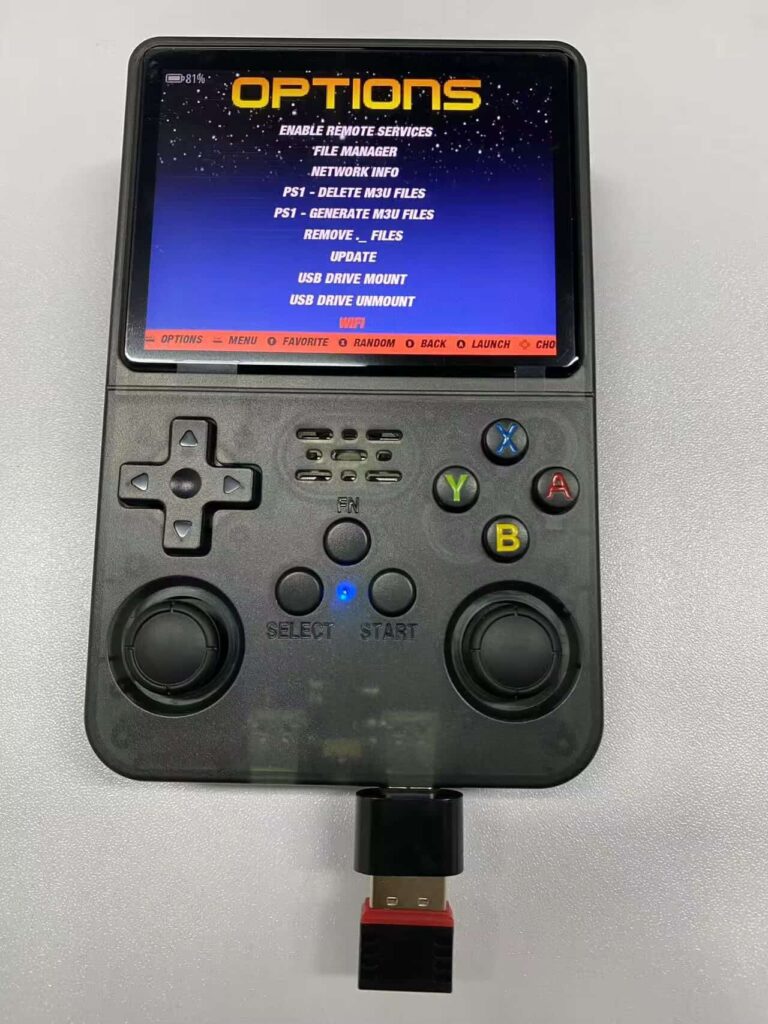
If your goal is “set it once, forget it”, this is the path.
What you need
- A compatible USB WiFi dongle
- A USB-C OTG adapter (USB-C to USB-A is the common combo)
- A decently charged R36S (don’t start at 12 percent and blame the dongle)
Step-by-step: connect and join WiFi
- Power off the R36S (optional, but it reduces weird detection issues).
- Plug the WiFi dongle into your USB-C OTG adapter.
- Insert the OTG adapter into the OTG USB-C port on the R36S.
- Boot up.
- From the main menu, open the Options/System area and find the WiFi tool (often called WiFi or WiFi Manager).
- Choose the option to connect to a new WiFi network.
- Let it scan, select your SSID, enter the password, then confirm.
If you’re using the standard ArkOS build, keep your volume up slightly when you hit ‘Connect.’ You’ll often hear a little system chime or a notification sound when the IP address finally assigns. That ‘ding’ is the most satisfying sound in retro gaming because it means you finally stopped troubleshooting and can actually start scraping box art.
Don’t be surprised if your WiFi dongle gets surprisingly hot to the touch after about 10 minutes of scraping box art. These tiny USB sticks aren’t great at shedding heat, especially when they’re working overtime to pull 2,000 images from the internet. It’s normal, but maybe don’t leave it plugged in for 5 hours straight.
Confirm you’re really online
Don’t assume “it connected” means “it works”.
A quick check:
- Re-open the WiFi tool and look for current network info (IP address shown is a good sign).
- Try the feature you actually needed internet for (updater, downloader, online scraper, whatever your workflow is).
If you’re updating firmware or reinstalling, use: Install or reinstall ArkOS on R36S.
How to connect R36S to WiFi without adapter (using your phone)
When people say “how to connect r36s to wifi without adapter” or “how to connect r36s to wifi without dongle”, they usually mean this: “I don’t have a WiFi stick. Can I still get internet on the R36S today?”
Sometimes, yes.
Not with magic. With USB tethering.
How to connect R36S to WiFi with phone (Android USB tethering)
This method shares your phone’s internet over a USB cable. No WiFi password entry on the R36S. That’s the whole appeal.
What you need:
- Android phone
- USB-C cable that supports data (not charge-only)
- If required, an OTG adapter so the R36S can act as the host
Steps:
- Connect your Android phone to the R36S using a USB-C data cable (and OTG adapter if your cable setup requires it).
- Unlock your phone.
- Go to Settings, then find Hotspot and tethering (wording varies).
- Turn on USB tethering.
- Wait 5 to 15 seconds. Some phones take a moment to negotiate the connection.
- On the R36S, open the network or WiFi area and look for an active connection state.
If nothing happens, don’t instantly declare it “unsupported”. Try a different cable first. Then try the other USB-C port. This device is picky.
If you’re using the Android tethering method, be careful with how you move the handheld. One slight wiggle of that USB-C cable can break the tethering connection instantly, and ArkOS isn’t always great at ‘re-finding’ the phone without a full reboot of the network settings. I usually set my phone and the R36S flat on a table and don’t touch them until the update is done.
How to connect R36S to WiFi with iPhone (the honest answer)
If you’re specifically searching “how to connect r36s to wifi with iphone” or “how to connect r36s to wifi without adapter iphone”, here’s the reality check.
On many setups, iPhone USB tethering won’t be detected the same way Android tethering is. Even when the cable fits, the underlying USB networking behavior doesn’t always line up with what the handheld expects.
So what should you do instead?
- Use a compatible WiFi dongle (still the cleanest fix).
- Or use a PC-based approach (next section) if you only need internet temporarily.
If you already have a Personal Hotspot on your iPhone and you’re thinking “can the R36S join it?”, it can, but only if the R36S has a working WiFi adapter. Hotspot is still WiFi.
How to connect R36S to WiFi with PC (two practical approaches)
People ask “how to connect r36s to wifi with pc” in two different ways. Let’s cover both, without pretending they’re the same.
Approach 1: USB-to-Ethernet + internet sharing (PC becomes the bridge)
This is the nerdy option, but it’s useful if:
- You can’t get a WiFi dongle quickly.
- You want a stable connection for updates.
- You have a supported USB-to-Ethernet adapter.
Basic idea: R36S connects by wired Ethernet, your PC shares its internet connection to that adapter.
High-level steps:
- Plug a USB-to-Ethernet adapter into the R36S OTG port (via OTG adapter if needed).
- Connect Ethernet from that adapter to your PC (or through your router/switch, depending on your setup).
- On your PC, enable internet sharing (Windows Internet Connection Sharing or macOS sharing) to the Ethernet interface.
- On the R36S, check network status and confirm it got an IP address.
Two warnings:
- Adapter compatibility can be its own rabbit hole.
- If you do get it working, it tends to be very stable, but it’s not exactly portable.
Approach 2: The “PC method” when you don’t truly need WiFi
Now, something most guides miss.
Sometimes you don’t need to connect the R36S to WiFi at all. You just need to move files, updates, BIOS, ports, or ROMs in the correct structure. That’s a storage workflow, not a network workflow.
In that case:
- Shut down the R36S.
- Put the relevant microSD card into your PC.
- Transfer what you need.
- Boot and test.
If your end goal is content (not connectivity), you’ll probably want: Add new games once your setup is sorted and maybe a browse through: Browse a full R36S games list.
Troubleshooting when R36S won’t connect
Here’s where most “it should work” advice collapses. The R36S is simple hardware, so small details matter.
No networks found, blank list, or weird symbols
If your WiFi scan shows nothing, or you open the WiFi tool and get a blank list (sometimes it looks like it’s selecting a strange placeholder), the usual causes are:
- Dongle isn’t supported (wrong chipset, or a chipset variant that needs different drivers).
- Dongle is in the wrong USB-C port (charging-only port trap).
- OTG adapter is flaky (yes, that happens).
- You plugged the dongle in after boot and it didn’t initialise cleanly.
Try this sequence:
- Power off.
- Insert dongle into OTG port before boot.
- Boot, then open WiFi Manager and scan again.
- If still empty, swap OTG adapter or try a different dongle.
Connects then drops, or behaves strangely
Quick reality check: WiFi dongles draw power. If the battery is low, the R36S can get weird. Connections drop. Scans fail. It looks like a software bug, but it’s just power delivery being unstable.
So do the boring test:
- Charge the R36S for a while.
- Then retry.
This guide helps you avoid charging mistakes: Charge the R36S properly (power matters for WiFi).
WiFi menu won’t open, or it bounces back
If you select WiFi settings and it instantly kicks you back to the menu, you’re not alone. It can happen after updates or if a tool gets corrupted.
What to try:
- Reboot with the dongle already inserted.
- Update or reinstall your firmware image if the system tools are glitching.
- If you’re troubleshooting multiple issues at once (WiFi plus controller quirks plus SD card problems), use: R36S troubleshooting for common issues.
Crackling speaker noise when WiFi is plugged in
Some units produce audible crackling or interference when a WiFi dongle is active. It’s annoying, but it’s typically electrical noise bleeding into the audio path, not “your speaker is dying”.
Two practical mitigations:
- Lower volume slightly (sometimes it reduces the perceived harshness).
- Try a different dongle (power draw and shielding differ).
If you charge while using WiFi, the noise can get louder on some setups. Not ideal, but predictable.
What you can do once connected
Once the R36S is online, you’re usually doing one of these:
- Update firmware and system scripts.
- Download ports or assets that require internet.
- Pull metadata or scrape artwork (depending on your setup).
- Run network-dependent tools.
If you’re at the stage where you’re installing, updating, and generally shaping the device into something reliable, it’s worth keeping your core setup clean and documented. Saves you future headaches.
FAQ
Does the R36S have built-in WiFi?
Most R36S units don’t include built-in WiFi hardware. That’s why you’ll often need a USB WiFi dongle or a tethering method to get internet access.
What is the best R36S WiFi dongle?
“Best” usually means “most compatible”. Look for simple dongles with well-supported chipsets (common Realtek or MediaTek/Ralink families), and avoid newer “WiFi 6” claims unless you know the chipset is supported.
How to connect R36S to WiFi with dongle?
Use a compatible dongle plugged into the OTG USB-C port via an OTG adapter, then open the WiFi Manager tool in the Options/System menu, scan, select your network, and enter the password.
How to connect R36S to WiFi without dongle?
If you mean without a WiFi dongle, the typical workaround is USB tethering from an Android phone. You connect phone to the R36S over USB and enable USB tethering in the phone’s network settings.
How to connect R36S to WiFi with phone if it only charges?
That’s usually a cable or port issue. Try a known data-capable USB cable, then make sure you’re plugged into the OTG-capable USB-C port on the R36S, not the charge-only port.
How to connect R36S to WiFi with iPhone?
In many cases, iPhone USB tethering won’t be detected properly. Your most reliable options are using a compatible WiFi dongle, or using a PC-based bridge like USB-to-Ethernet plus internet sharing.
How to connect R36S to WiFi using PC?
If you truly need internet on the handheld, the practical PC route is internet sharing to a USB-to-Ethernet adapter connected to the R36S OTG port. If you only need files, the simpler “PC method” is transferring content via microSD instead of networking.
Why does my R36S show no WiFi networks?
Most of the time it’s an unsupported dongle chipset, the dongle is plugged into the wrong USB-C port, or the OTG adapter/cable isn’t working. Rebooting with the dongle already inserted fixes more cases than you’d expect.
Final Thoughts
If you came here for how to connect R36S to WiFi, the fastest win is still a compatible dongle in the OTG port, then the WiFi Manager to join your network. Phone tethering is the next best option when you’re trying to get online right now without buying extra kit.
Do these three steps today:
- Identify the OTG port and test with a known-good data cable.
- Pick one method (dongle, Android tethering, or PC sharing) and commit to it.
- If it’s flaky, charge first, then troubleshoot compatibility second.
If you’re still battling multiple issues at once, don’t brute force it. Start with the basics and work outward.
