
R36S Specs: Full Breakdown (and How to Verify Yours)
If you’re searching for r36s specs, you’re probably trying to answer a simple question: what did I actually buy? Fair. The R36S is one of those handhelds that gets listed with confident spec sheets, then arrives with small (sometimes annoying) differences depending on the batch, seller, or included microSD setup.
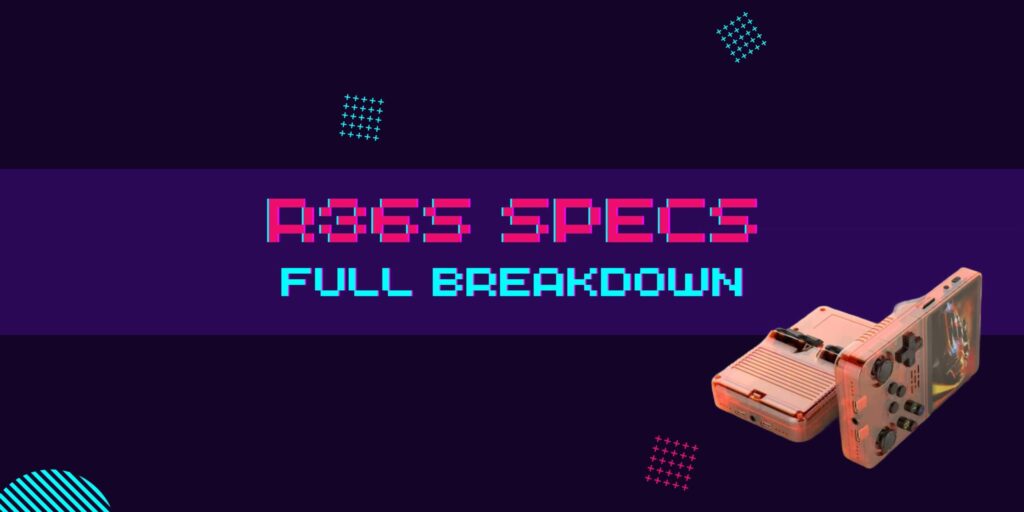
Let’s break this down properly. You’ll get a full spec table, plain-English explanations, and a quick way to verify your exact hardware in ArkOS so you’re not guessing.
R36S specs table (common configuration + what varies)
Before we get nerdy, here’s the clean “spec sheet view”, with an honesty layer on top. The middle column is what you’ll commonly see advertised for the R36S, and the right column tells you how to confirm it on your device.
| Spec area | Commonly listed / expected | How to verify on your unit (ArkOS) | Why it matters |
|---|---|---|---|
| SoC (chipset) | Rockchip RK3326 (common listing) | System info screen, or cat /proc/cpuinfo | Sets the overall performance ceiling. |
| CPU | Quad-core ARM Cortex‑A35 (common listing) | cat /proc/cpuinfo | Affects higher-end emulation and fast-forward. Great for PS1; hit-or-miss for N64. |
| GPU | Mali-G31 MP2 | Usually not shown clearly in UI, check firmware notes or system info | Impacts some renderers, shaders, and UI smoothness. Handles 2D perfectly; 3D needs “performance” cores |
| RAM | 1GB DDR3L | free -h (look at total), sometimes shown in system info | Impacts multitasking, menu smoothness, and stability under load. |
| Internal storage | None or minimal (varies) | Most “storage” is the SD cards | Realistically, SD cards are your storage. |
| SD card slots | Dual MicroSD Slots | Look at the device, confirm in ArkOS storage paths | Splitting OS and ROMs can improve reliability. |
| OS | Often ArkOS (or ArkOS-ready) | Boot screen, System settings, SD card label/structure | Determines menus, emulator cores, and update path. |
| Frontend | EmulationStation-style UI | Visible in normal use | Affects navigation, scraping, themes. |
| Emulators | RetroArch + standalone emulators | Emulators list in ArkOS | Determines what systems are available and how they run. |
| Display size | Often around 3.5-inch IPS (common listing) | Physical, plus resolution check in display settings | Impacts scaling, readability, pixel-perfect modes. |
| Display resolution | Often 640×480 (common listing) | Display settings, screenshot resolution, some system info screens | 4:3 Aspect Ratio is perfect for retro systems. |
| Battery | Commonly marketed ~3000–3500 mAh (varies) | Hard to confirm precisely without teardown, judge by runtime | Impacts playtime and how picky you must be about charging. |
| Charging | USB‑C, typically 5V | Use known-good 5V charger and cable, avoid “too smart” fast chargers | Prevents charging quirks and boot instability. |
| Ports | USB‑C, 3.5mm audio, microSD slots (others vary by revision) | Visual inspection | Determines dongle needs, audio options, accessories. |
| Wi‑Fi / Bluetooth | Often not built-in, USB dongle-based | Try the Wi‑Fi setup flow, check for adapter detection | Affects scraping, updates, retro achievements, file transfer workflows. |
| Audio | Built-in speaker + headphone out | Obvious in use | Quality varies, headphone helps a lot. |
Want the buying context version of this, not just the raw sheet? See the “full R36S review and buying context” guide here: Full R36S review and buying context.
R36S CPU and chipset (what you’ll usually see, what it means)
Most people asking “R36S cpu” are really asking a bigger question: what level of emulation is this thing aiming at? The R36S usually sits in that sweet spot where 8-bit and 16-bit systems are easy, PS1 is typically comfortable, and anything newer becomes a game-by-game conversation.
That doesn’t mean it’s weak. It means it’s honest hardware. If you set expectations right, it feels great. If you buy it hoping for “everything up to PS2”, you’ll be irritated fast.
CPU vs SoC vs GPU, the naming that trips people up
Here’s the confusion loop I see constantly:
- A listing names the SoC (for example, RK3326). People think that’s the CPU.
- Another listing names the CPU core family (for example, Cortex‑A35). People think that’s a different chip.
- Then someone mentions the GPU (for example, Mali‑450) and now it sounds like three separate devices.
In practice, the SoC is the whole package. CPU cores and GPU are inside it. Sellers mix and match whichever label sounds most “spec-y”, so you end up comparing apples to half an apple.
What you should actually do: verify your unit, then judge performance by what you play. That’s the only metric that counts.
R36S RAM, storage, and SD slots
Let’s hit the big one: R36S ram.
How much RAM does a R36S have?
You’ll usually see 1 GB mentioned for the R36S. Some listings get vague and just say “DDR” without a number, which is not helpful. Either way, RAM on these handhelds is less about raw multitasking and more about stability, menu responsiveness, and avoiding weird slowdowns when cores and overlays pile up.
You’ll see ‘1GB RAM’ on the box, but in the world of retro gaming, more RAM doesn’t equal more speed. This RAM is mostly used to keep the EmulationStation menus smooth and to hold the ‘cores’ in memory. If your games are lagging, don’t blame the RAM, it’s likely the CPU struggling or a slow SD card bottlenecking the data flow.
Why the SD card matters more than people think
A lot of R36S units ship with a bargain microSD card. It works, until it doesn’t. If your R36S experience feels flaky, an SD upgrade is the cleanest quality-of-life move you can make.
Practical best practice:
- Use a reputable microSD for the OS card.
- Use another reputable microSD for ROMs if your unit supports dual cards.
- Keep a backup of your BIOS and saves. Seriously.
If you want a shortcut instead of trial-and-error, use this: R36S SD card compatibility list.
Display, controls, and build details worth checking
Specs aren’t only silicon. The “feel” matters, and it’s where cheap handhelds can surprise you, good or bad.
A quick checklist I’d actually use:
- Check the D-pad for unwanted diagonals. This is a classic issue.
- Test shoulder buttons for consistent actuation. Some units are clicky, some mushy.
- Look for light bleed on a black screen in a dark room. Not a dealbreaker, but good to know.
- Try 10 minutes of a game that uses both sticks and triggers. Comfort shows up fast.
Screen resolution is another spec that gets thrown around without context. Even if your R36S is “only” 640×480, it can still look crisp with the right scaling. The trick is using integer scale when it makes sense, and accepting that some systems won’t land perfectly.
Physical Build and Display
When looking at the physical hardware, many users ask what resolution is r36s equipped with? The device features a 3.5-inch IPS display with a 640×480 resolution. This 4:3 aspect ratio is the “golden standard” for retro gaming, ensuring that consoles like the SNES and PS1 look crisp without awkward stretching.
If you are wondering about the “pocketability” of the device, the r36s dimensions are approximately 12.5 x 8.2 x 2.1 cm (4.92 x 3.23 x 0.83 inches). It’s roughly the size of a original Game Boy Color, though slightly thicker due to the recessed shoulder buttons on the back.
Finally, for those curious about the internal brain of the unit, what chip is in r36s handhelds? It uses the Rockchip RK3326 Quad-core SoC. This chip is paired with a Mali-G31 MP2 GPU, providing just enough horsepower to handle most 3D games from the 32-bit and 64-bit eras.
OS and software stack (ArkOS, EmulationStation, RetroArch)
The R36S is usually running ArkOS, and that’s a big part of why it’s popular. ArkOS tends to simplify the experience: consistent menus, sane defaults, and a community-tested ecosystem of emulator cores and tweaks.
The typical stack looks like this:
- ArkOS (Linux-based OS)
- EmulationStation-style frontend (your game menu UI)
- RetroArch (multi-system emulator framework)
- A few standalone emulators for specific systems
If your unit didn’t arrive the way you want, or you’re rebuilding from scratch, use this walkthrough: How to install ArkOS on R36S.
And when you’re ready to load your library the clean way: How to add new games to your R36S.
Ports, charging, and connectivity (Wi‑Fi reality check)
Charging and connectivity are where expectations get messy.
Charging: keep it boring
These handhelds tend to behave best with boring power:
- A standard 5V USB charger.
- A decent USB‑C cable.
- No fancy negotiation, no “smart” fast-charging drama.
Common mistake: people grab the nearest high-watt phone charger, then wonder why charging is inconsistent or the device gets warm. If you want a practical charging walkthrough, here’s one: How to charge R36S.
Does the R36S have Wi‑Fi or Bluetooth?
A lot of listings imply Wi‑Fi. The reality for many units is Wi‑Fi via USB (using OTG plus a supported Wi‑Fi dongle), not necessarily built in. Bluetooth is even more likely to be misunderstood. Assume nothing until you test your own unit.
If you’re trying to get online, follow a step-by-step setup that matches what the R36S actually supports: Connect R36S to Wi‑Fi (what you really need).
How to verify your exact specs in ArkOS
This is the part that saves you hours. You don’t need to trust a product page. You can check.
Menu checks (fastest)
Start here:
- Open the main System or Settings area in ArkOS.
- Look for a System Information screen (name varies by build).
- Note what it reports for CPU, memory, and storage.
If you don’t see much detail, don’t panic. Many builds keep it simple.
Safe command-line checks (more precise)
If you’re comfortable dropping into a terminal (via local console or SSH if you have networking set up), these are the usual quick checks:
- CPU details:
cat /proc/cpuinfo - Memory total:
free -h - Storage devices:
lsblk
What you’re looking for:
- CPU model lines and core count.
- “Mem:” total in
free -h(that’s your practical RAM number). - Which SD card is mounted where (handy for dual-card setups).
If anything looks off, or you’re seeing boot loops, missing games, or random freezes, it’s often a setup issue not a mysterious hardware defect. This troubleshooting guide is the fastest path back to sanity: R36S troubleshooting for common issues.
The “Silicon Lottery”
The R36S is a ‘community’ device, meaning it’s manufactured in different batches. You might see some units with a slightly different screen panel or a different brand of RAM. This is why the ‘Panel Picker’ in ArkOS exists, it’s the software’s way of saying, ‘I know your hardware might be a little different than the last one I saw.
FAQ
What are the R36S specs?
Most people mean the basics: chipset (SoC), CPU, GPU, RAM, screen, SD slots, ports, OS, and connectivity. The tricky bit is that “R36S” is sold in a way where those details can be described inconsistently, so the best answer is a spec table plus verification steps on your own unit.
How much RAM does a R36S have?
You’ll commonly see 1 GB listed, and it’s usually enough for the intended emulation range. If you want certainty, check directly in ArkOS using free -h, because that reports what your device is actually running with.
What chip is in R36S? (CPU & SoC)
You’ll often see it described as a quad-core ARM setup, sometimes named by the SoC and sometimes by the CPU core family. If you’re comparing listings and they don’t match, verify with cat /proc/cpuinfo and treat that as the final word for your unit.
What screen resolution is the R36S?
Many R36S listings mention a classic 4:3 style resolution that suits retro systems well. The practical way to confirm is to check display settings (if exposed) or look at the resolution of a screenshot taken on the device.
Does the R36S have built-in Wi‑Fi?
Often, no. Many setups use USB‑OTG plus a compatible Wi‑Fi dongle. The only reliable test is whether ArkOS detects a Wi‑Fi adapter and can scan networks on your device.
Can I install ArkOS on the R36S?
In many cases, yes, and it’s one of the most common reasons people buy the R36S in the first place. Just make sure you’re following a method that matches the R36S boot and SD layout, and use a good-quality microSD.
What SD cards work best for the R36S?
Reputable cards are the best “performance upgrade” you can buy for this handheld. A flaky SD card can mimic all sorts of fake “hardware problems”, from slow boots to corrupted saves.
What systems can the R36S emulate well?
Think classic consoles and handhelds first, then step upward cautiously. Older systems are typically smooth, PS1 is often a strong point, and anything more demanding becomes title-by-title with settings tweaks.
How do I check my R36S specs on-device?
Start with ArkOS system info screens for the quick view. For a deeper check, use cat /proc/cpuinfo for CPU details and free -h for RAM, then confirm your SD layout with lsblk.
Final Thoughts
If you came here for r36s specs, the most useful takeaway is this: the “common spec sheet” is only the starting point. The R36S is a batchy, seller-dependent handheld, so verifying your own R36S cpu, R36S ram, and storage setup is how you avoid bad assumptions.
The RK3326 chipset is the heart of the R36S. Think of it as a reliable marathon runner, not a sprinter. It will handle the 16-bit era (SNES/Genesis) and PS1 all day long without breaking a sweat. However, when you push it into N64 or Dreamcast territory, you’re asking it to run a sprint it wasn’t quite built for. You’ll get some wins, but expect some stutters.
Three action steps that pay off immediately:
- Verify CPU and RAM in ArkOS (menus first, commands if needed).
- Replace the included microSD if stability matters to you.
- Decide your setup goal (simple offline play, Wi‑Fi features, or a clean ArkOS rebuild) and follow one path, not five half-paths.
If you want the bigger picture of what the R36S feels like to live with, jump into the full guide, then circle back here when you’re tuning settings.
